Worktrees let you run several agents on the same project without them
stepping on each other. Each one gets its own checkout of the repository,
on its own branch, with its own panes and agent sessions, while the
repository, the worktrees, and the commands all stay on your machine.
Paneflow creates and removes these worktrees for you. Before it removes
one, it saves the uncommitted work as a snapshot you can restore later.
## What a worktree is
Worktrees only exist for projects that live in a Git repository, because
Paneflow uses Git worktrees under the hood. A worktree is a second copy
("checkout") of your repository. It has its own copy of every file, but it
shares the same metadata (the `.git` folder) about commits, branches, and
remotes. That is what lets you check out and work on several branches at
the same time.
### Terminology
- **Project checkout:** the repository you opened as a workspace, the one
your project folder points at.
- **Managed worktree:** a Git worktree Paneflow created from that checkout,
and that it cleans up for you.
- **Snapshot:** a commit Paneflow makes of a worktree's uncommitted changes
right before removing it, so nothing is lost.
### Why use a worktree
- Let one agent work on a feature while another fixes a bug, each on its own
branch, without disturbing your project checkout.
- Keep a long-running task in the background while you stay focused on the
foreground.
- Read the result later in [Review](/docs/review), side by side with other
worktrees, without checking anything out.
## Getting started
Worktrees require a Git repository. Make sure the project you opened lives
in one.
### Open a pane on a new branch
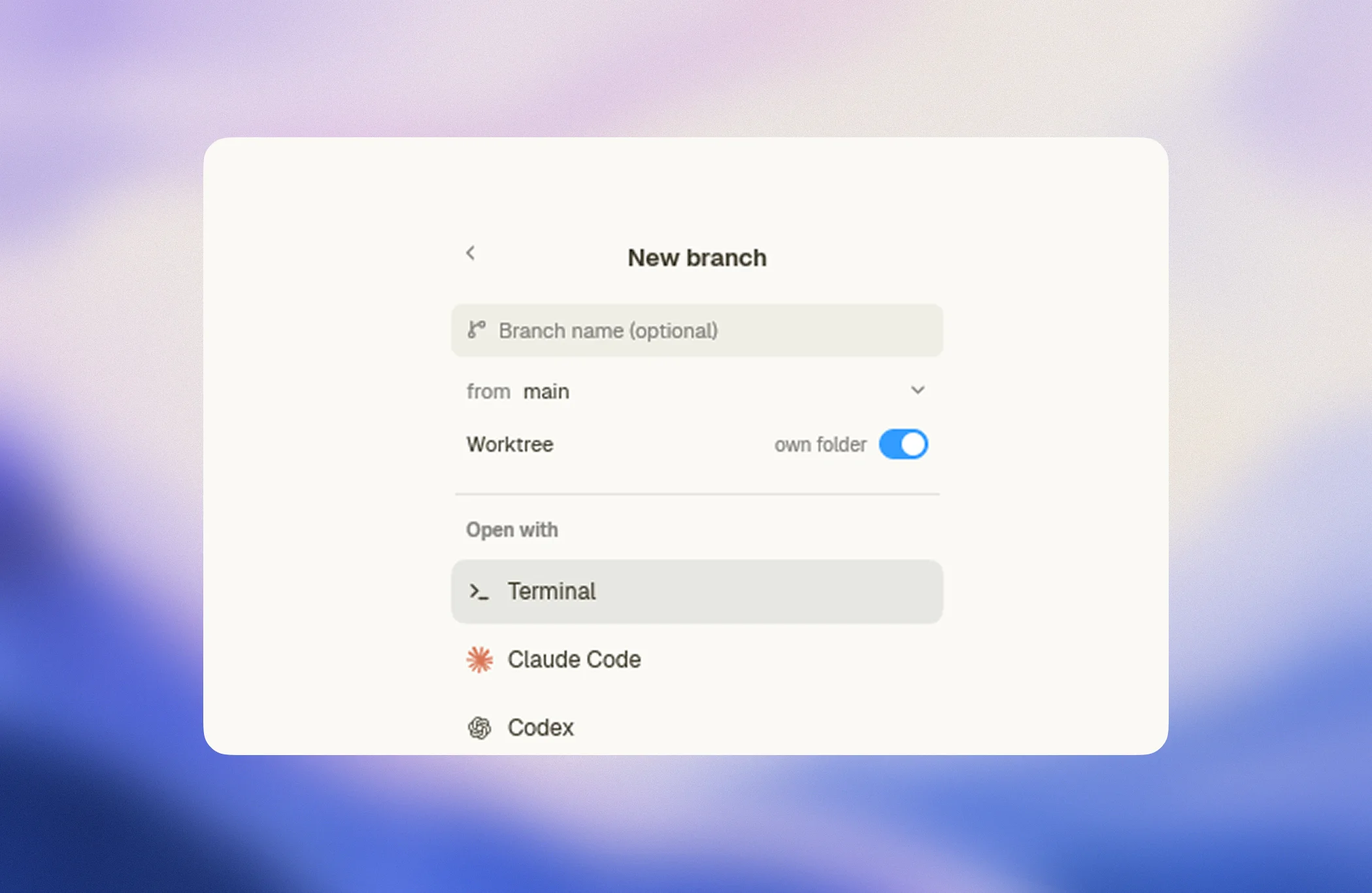
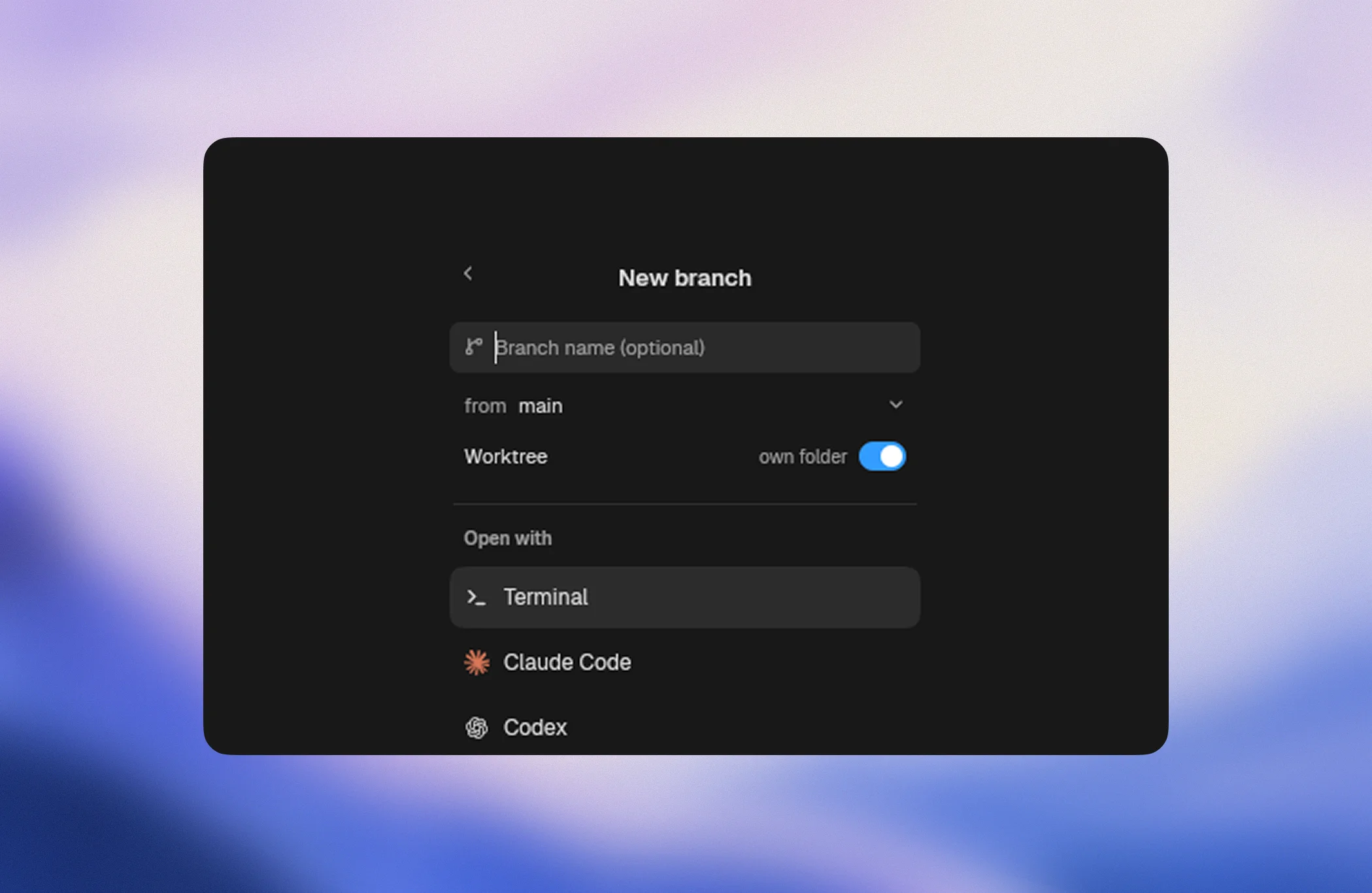
1. Add a pane. The "New pane" palette opens with a branch row above the
list of agents.
2. Open the branch row and pick **New branch…**.
3. Type a branch name, or leave it empty to start detached.
4. Pick the branch or commit to start **from**. It defaults to the branch
your project is on.
5. Leave the **Worktree** toggle on.
6. Pick what to open with: a terminal, Claude Code, Codex, OpenCode, or any
launcher you configured.
Paneflow creates the branch and its worktree from the base you picked, binds
the tab to that worktree, and opens the pane there. The tab shows the branch
name, and the agent starts inside the worktree directory.
The same flow exists in three other places:
- The **Launch Pad** has a "New branch" field and the same "From" select.
- The tab's context menu offers **New branch…** for a tab that already
exists.
- `paneflow up` and flows take `worktree` and `from` fields; see
[Scripting](/docs/scripting).
### Reuse a branch that already exists
Pick an existing branch in the branch row, or type its name in "New
branch…". If the branch is already checked out in a worktree, Paneflow
reuses that worktree. If it is not checked out anywhere, Paneflow creates a
worktree for it. The "from" base is ignored in that case, since the branch
already has its own history.
Git only allows a branch to be checked out in one place at a time. Paneflow
never fights that rule: it reuses the existing checkout instead of failing
with `'feature/a' is already used by worktree at …`.
### Start detached, name the branch later
Leave the branch name empty and Paneflow creates a worktree detached at the
base you picked, named `-` after the commit it started from. This
is the right choice when you do not know yet whether the work deserves a
branch.
When it does, right-click the tab and pick **Create branch here…**. Paneflow
runs `git switch -c` inside that worktree, so your uncommitted changes stay
exactly where they are.
## Switch the project checkout instead
Turn the **Worktree** toggle off in the "New branch…" form and Paneflow
switches your project checkout to the branch in place, the way
`git switch -c` would, instead of creating a worktree. The pane opens at the
repository root, and nothing is added to the managed list.
Use this when you work alone on the repository and want a branch without a
second folder. Paneflow remembers your last choice in
`worktrees.for_new_branches`, so the toggle opens the way you left it.
Switching a checkout moves the files under every pane that uses it, so
Paneflow refuses the switch while an agent is working in that checkout. A
worktree exists for exactly that case.
## Where worktrees live
Paneflow creates managed worktrees under `~/.paneflow/worktrees`
(`%USERPROFILE%\.paneflow\worktrees` on Windows), one subdirectory per
repository and one directory per branch:
```text
~/.paneflow/worktrees/
paneflow-05926cc4/
feat-agents-browser/
fix-login/
```
Nothing is written inside the checkout itself. The marker that tells
Paneflow it owns a worktree lives in the worktree's own Git metadata, so
`git status` stays clean and the marker disappears with the worktree.
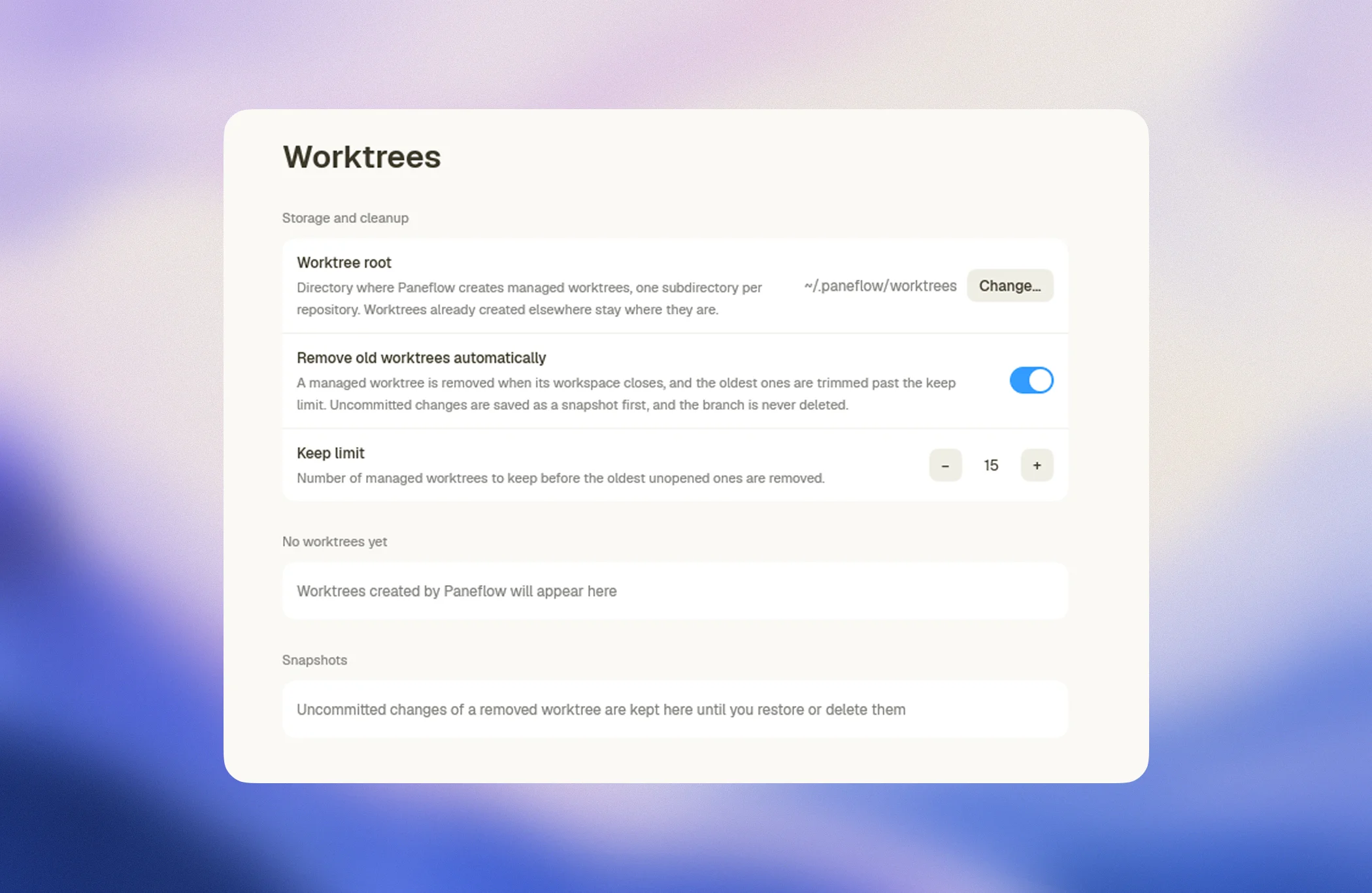
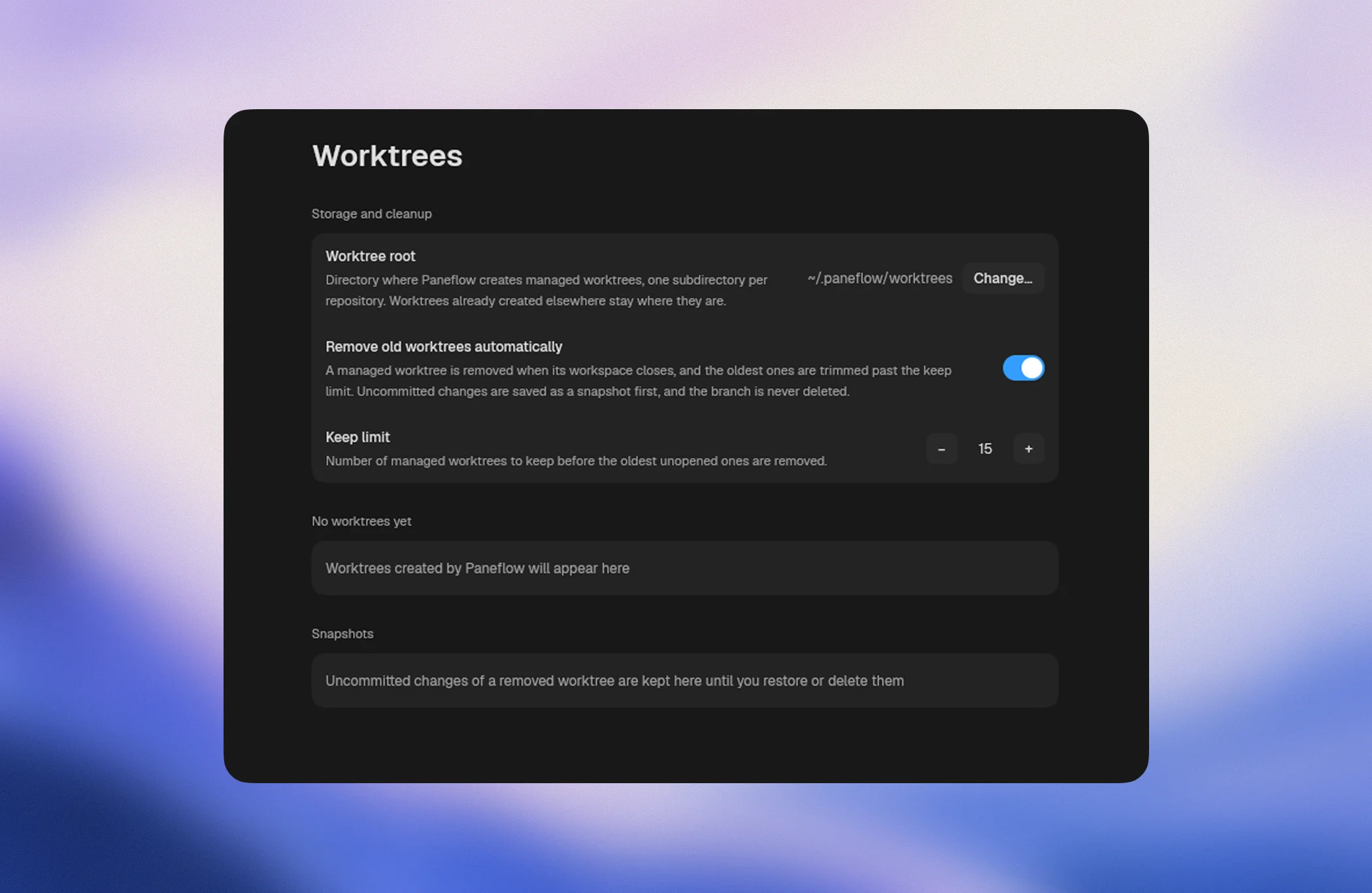
Change the root in **Settings > Worktrees**, or set `worktrees.dir` in
`paneflow.json`. The new root applies to worktrees created from then on;
worktrees created under an earlier root keep working where they are and
stay listed.
### Copy ignored local files into new worktrees
A new worktree starts from a Git checkout, so tracked files are already
there. Files Git ignores are not, and a worktree often needs a few of them
to run: `.env`, `.env.local`, a local secrets file.
Add a `.worktreeinclude` file at the repository root and list the ignored
paths to copy, one per line, relative to the root. Directories work too,
with or without a trailing slash, and `#` starts a comment.
```text
# .worktreeinclude
.env
.env.local
config/secrets.json
```
Without the file, Paneflow copies the top-level `.env*` files and
`AGENTS.override.md` when they exist. A file that already exists in the
worktree is never overwritten. Do not list tracked files; Git already brings
them.
## Cleanup
Worktrees take disk space: each one carries its own files, dependencies,
and build caches. Paneflow keeps their number reasonable on its own.
By default Paneflow keeps your 15 most recent managed worktrees. Change the
limit or turn automatic removal off in **Settings > Worktrees**, or with
`worktrees.keep_limit` and `worktrees.auto_remove` in `paneflow.json`.
A managed worktree is removed automatically when:
- you close the workspace it belongs to;
- Paneflow needs to trim the oldest ones to stay within the keep limit.
A managed worktree is never removed automatically while a tab in an open
workspace uses it. The branch is never deleted either: removing a worktree
only removes the checkout, your commits stay on the branch.
You can also remove a worktree by hand from **Settings > Worktrees**, or
from the tab's context menu. Paneflow only removes worktrees it created;
worktrees you made yourself with `git worktree add` are left alone.
## Snapshots
Before removing a managed worktree, automatically or by hand, Paneflow
saves its uncommitted work as a snapshot: tracked edits, new files, and the
branch the worktree was on. A clean worktree leaves no snapshot.
Snapshots are ordinary Git commits stored under `refs/paneflow/snapshots/`
in your repository. They do not touch your branches, they are never pushed,
and you can inspect them with `git log refs/paneflow/snapshots/` if
you want to.
**Settings > Worktrees** lists them under "Snapshots":
- **Restore** recreates the worktree at its original path, on the same
branch, with the saved changes back as uncommitted work, and copies your
`.worktreeinclude` files again.
- **Delete** drops the snapshot for good.
Removing a worktree whose changes you no longer want is a two-step
operation on purpose: remove, then delete the snapshot.
## Worktrees and Review
[Review](/docs/review) reads worktrees without checking anything out. Drag a
branch or a worktree onto a pane edge to read its diff against the base you
pick, up to six side by side. Removing a worktree drops it from Review as
well.
## Frequently asked questions
### Can I control where worktrees are created?
Yes. Set the root in Settings > Worktrees or with `worktrees.dir`. `~`
expands to your home directory, and `PANEFLOW_HOME` moves the whole
`~/.paneflow` directory, worktrees included.
### What happens to my work when a worktree is removed?
Your commits stay on the branch. Uncommitted changes go into a snapshot you
can restore from Settings > Worktrees. Pick the branch again in the "New
pane" palette to get a fresh worktree from its committed state.
### Can I move work between a worktree and my project checkout?
Commit or stash on the worktree, then switch your project checkout to the
branch, either from the "New branch…" form with the Worktree toggle off or
with `git switch`. Git will refuse while the branch is still checked out in
the worktree, so remove that worktree first from Settings > Worktrees.
### Does Paneflow touch worktrees I created myself?
No. Paneflow lists them in the branch row and opens panes in them, but it
never removes a worktree it did not create.
## See also
- [Configuration reference](/docs/configuration/schema#worktrees) - every
`worktrees.*` key.
- [Review](/docs/review) - read worktree diffs side by side.
- [Scripting](/docs/scripting) - `worktree` and `from` in `paneflow up`.
- [Settings](/docs/settings) - the Worktrees page.